OpenClaw Configuration
Pay-as-you-go MiMo API and Token Plan are both supported for use in OpenClaw. Please refer to this article for configuration and usage.
Preparatory Work
Obtain Credentials
Supports two usage methods, but the corresponding credential acquisition methods are different:
| Usage | Description | Acquisition Method (BASE_URL and API Key below are both examples) |
|---|---|---|
| Pay-as-you-go API calls | Charged based on actual usage, suitable for light use |
Go to API Keys to create an API Key |
| Token Plan | Fixed subscription fee, with limited calls based on the package |
After successful subscription, go to Subscription Management to obtain the exclusive Base URL and API Key |
Note: When OpenClaw uses MiMo under the Anthropic protocol, due to the absence of reasoning_content in the assistant containing tool calls, the API will return a 400 error. For details, see [Important Announcement] Explanation of Postback of reasoning_content in Multi-round Conversations of Agent Products.
Install OpenClaw
Precondition: Node.js 22 or later
macOS/Linux:
curl -fsSL https://openclaw.ai/install.sh | bash
Windows (PowerShell):
iwr -useb https://openclaw.ai/install.ps1 | iex
Configure and use MiMo model
Precautions: OpenClaw supports the preconfigured settings of the MiMo pay-as-you-go API, which can be configured via Method 1 Interactive Configuration Wizard. OpenClaw has not yet added the MiMo Token Plan preset configuration, so you need to manually modify the configuration file through Method 2.
Method 1: Interactive Configuration Wizard
After the installation is complete, the configuration process will automatically start. You can also run the following command to start the configuration:
openclaw onboard --install-daemon
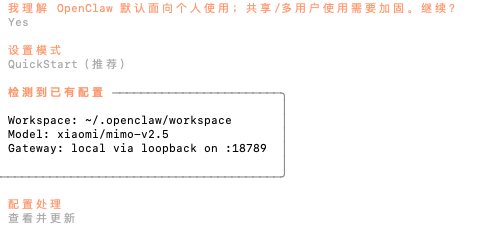
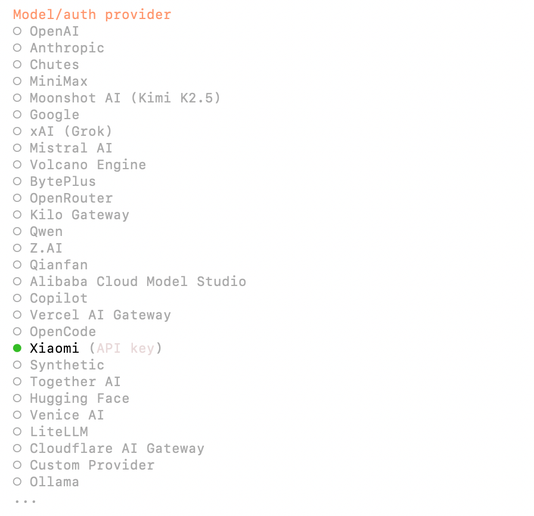
1. Configure the provider
-
I understand this is personal-by-default and shared/multi-user use requires lock-down. Continue? ➡️ Yes
-
Set Mode ➡️ QuickStart
-
Configuration Processing ➡️ View and Update
-
Model/auth provider ➡️ Xiaomi
2. Configure the model and API Key
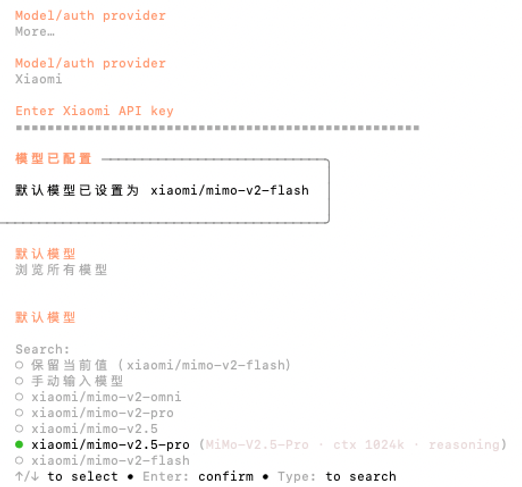
Enter the API Key of the MiMo Open Platform, browse all models, and select the latest v2.5 series models.
3. Continue to complete the subsequent configuration
-
Select channels, select search providers, configure skills, etc.
-
Complete Setup
4. Test Robot
-
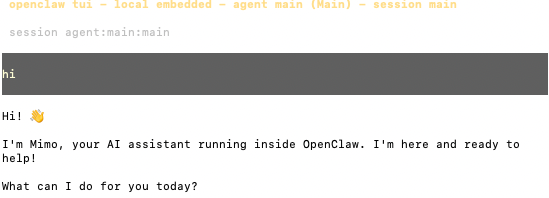
How do you want to hatch your bot? ➡️ You can chat with the bot in TUI/Web UI
- TUI: Enter
openclaw tui, and if the conversation is successful, it indicates successful configuration
- TUI: Enter
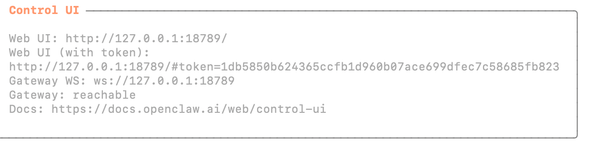
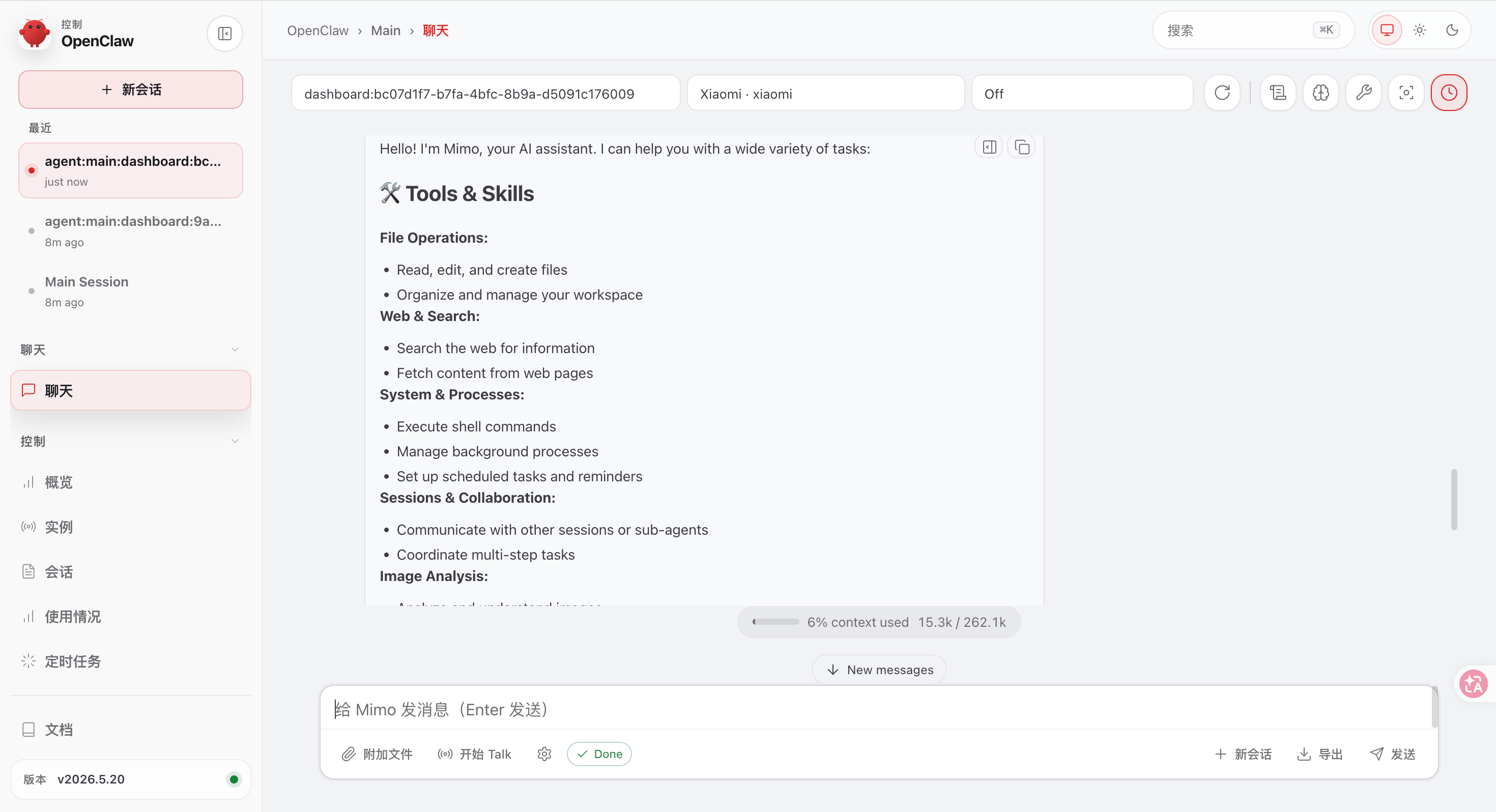
- Web UI: Access the Web UI by opening the
Web UI (with token)link displayed in the terminal
Method 2: Modify the Configuration File
Copy the following content in full to the configuration file~/.openclaw/openclaw.json (replace BASE_URL and API Key as needed in actual use):
Notes: Token Plan only supports configuration via Method 2. When using Token Plan, you need to delete the "auth" field in the configuration file, and you need to add a provider to distinguish it from the pre-set MiMo gateway.
Token Plan Configuration Example:
Delete the "auth" field
 "auth": {
    "profiles": {
      "xiaomi:default": {
        "provider": "xiaomi",
        "mode": "api_key"
      }
    }
  }
Add a new provider under the models.provider path. Do not set the provider name to xiaomi, to distinguish it from the pre-set MiMo gateway. For example, set it to xiaomi-coding
The corresponding default agent configuration also needs to add the corresponding model, with the format provider name/model name, for example xiaomi-coding/mimo-v2-pro
{
  "models": {
    "mode": "merge",
    "providers": {
      "xiaomi-coding": {
        "baseUrl": "BASE_URL",
        "apiKey": "API_KEY",
        "api": "openai-completions",
        "models": [
          {
            "id": "mimo-v2.5-pro",
            "name": "mimo-v2.5-pro",
            "reasoning": true,
            "input": [
              "text"
            ],
            "contextWindow": 1048576,
            "maxTokens": 32000
          },
          {
            "id": "mimo-v2.5",
            "name": "mimo-v2.5",
            "reasoning": true,
            "input": [
              "text",
              "image"
            ],
            "contextWindow": 262144,
            "maxTokens": 32000
          }
        ]
      }
    }
  },
  "agents": {
    "defaults": {
      "model": {
        "primary": "xiaomi-coding/mimo-v2.5-pro"
      },
      "models": {
        "xiaomi-coding/mimo-v2.5": {},
        "xiaomi-coding/mimo-v2.5-pro": {}
      }
    }
  }
}
Example of Pay-as-you-go API Configuration
 {
   "auth": {
    "profiles": {
      "xiaomi:default": {
        "provider": "xiaomi",
        "mode": "api_key"
      }
    }
  },
  "models": {
    "mode": "merge",
    "providers": {
      "xiaomi": {
        "baseUrl": "BASE_URL",
        "apiKey": "API_KEY",
        "api": "openai-completions",
        "models": [
          {
            "id": "mimo-v2.5-pro",
            "name": "mimo-v2.5-pro",
            "reasoning": true,
            "input": [
              "text"
            ],
            "contextWindow": 1048576,
            "maxTokens": 32000
          },
          {
            "id": "mimo-v2.5",
            "name": "mimo-v2.5",
            "reasoning": true,
            "input": [
              "text",
              "image"
            ],
            "contextWindow": 262144,
            "maxTokens": 32000
          }
        ]
      }
    }
  },
  "agents": {
    "defaults": {
      "model": {
        "primary": "xiaomi/mimo-v2.5-pro"
      },
      "models": {
        "xiaomi/mimo-v2.5": {},
        "xiaomi/mimo-v2.5-pro": {}
      }
    }
  }
}
Connect to More Channels
OpenClaw provides more channels for you to interact with the robot, such as Web UI, Discord, Feishu, etc. You can refer to the official documentation to set up these channels:Chat Channels - OpenClaw.
FAQ
Why can't I find mimo-v2-pro and mimo-v2-omni in the model list when using OpenClaw Interactive Configuration?
mimo-v2-pro and mimo-v2-omni have been updated to OpenClaw 2026.3.19 and later versions. Please update the version and try again.