Qwen Code Configuration
Pay-as-you-go MiMo API and Token Plan both support Qwen Code. Refer to this guide for configuration and usage.
Prerequisites
Obtain Credentials
Supports two usage methods, but the corresponding credential acquisition methods are different:
| Usage Method | Description | Acquisition Method (BASE_URL and API Key below are examples) |
|---|---|---|
| Pay-as-you-go MiMo API | Charged based on actual usage, suitable for light use |
Go to API Keys to create an API Key |
| Token Plan | Fixed subscription fee, with limited calls based on the package |
After successful subscription, go to Subscription to obtain the exclusive Base URL and API Key |
Use Qwen Code CLI
Install Qwen Code CLI
Installation commands:
- macOS/Linux
bash -c "$(curl -fsSL https://qwen-code-assets.oss-cn-hangzhou.aliyuncs.com/installation/install-qwen.sh)" -s --source bailian
- Windows
curl -fsSL -o %TEMP%\install-qwen.bat https://qwen-code-assets.oss-cn-hangzhou.aliyuncs.com/installation/install-qwen.bat && %TEMP%\install-qwen.bat --source bailian
Verify the installation (a version number output indicates success):
qwen --version
Configure Settings
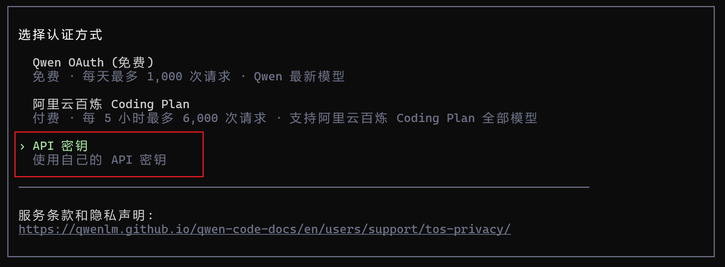
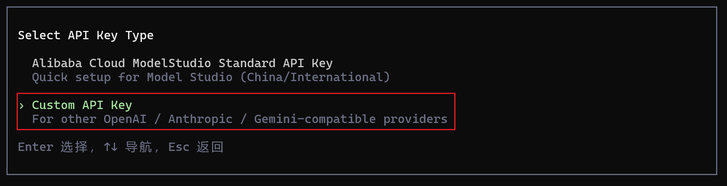
1. Select API Key -> Custom API Key to enter custom configuration
2. Edit the configuration file
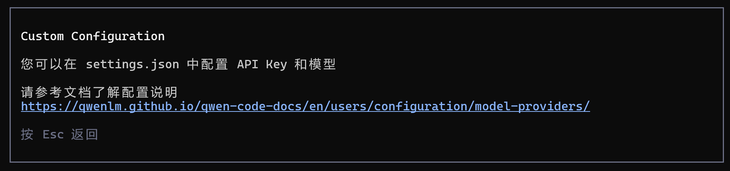
For more detailed configuration information, visit the Qwen Code official configuration documentation.
Edit or create the settings.json file at the following path:
-
macOS/Linux:
~/.qwen/settings.json -
Windows:
User directory\.qwen\settings.json
Copy the following content into the configuration file (replace with your actual settings when using):
When configuring basic information, you need to first check if the MIMO_API_KEY environment variable exists. If it does, please clear it or replace the value with the API Key obtained through the corresponding usage method.
{
  "env": {
    "MIMO_API_KEY": "MIMO_API_KEY"
  },
  "modelProviders": {
    "openai": [
      {
        "id": "mimo-v2.5-pro",
        "name": "mimo-v2.5-pro",
        "baseUrl": "BASE_URL",
        "envKey": "MIMO_API_KEY"
      }
    ]
  },
  "security": {
    "auth": {
      "selectedType": "openai"
    }
  },
  "model": {
    "name": "mimo-v2.5-pro"
  },
  "$version": 3
}
Use Qwen Code CLI
After completing the above configuration, open a new terminal and run the following command to start Qwen Code CLI:
qwen
Once started, you can use MiMo models in Qwen Code CLI.

Use the Qwen Code IDE Plugin
Install the Plugin
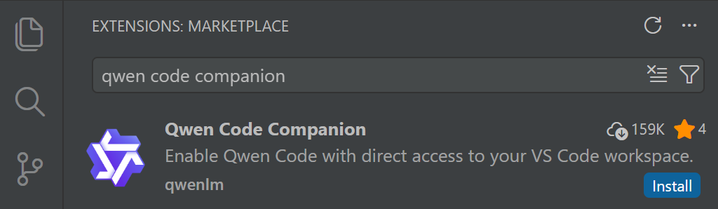
Search for and install the Qwen Code Companion plugin from the VS Code Extensions marketplace.
Configure Settings
Follow the same steps as described in the Qwen Code CLI configuration section above.
Use the Qwen Code Plugin
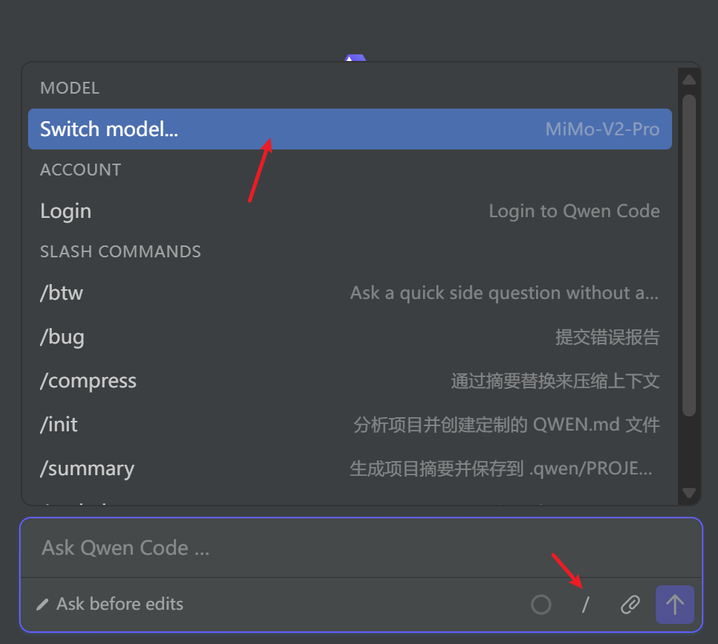
Click the Qwen Code icon in the top-right corner to open the dialog.

Type or click /, then select Switch model to change the model.